


MetaTrader 4 App
Trade anytime, anywhere with the popular and user-friendly MT4 app.


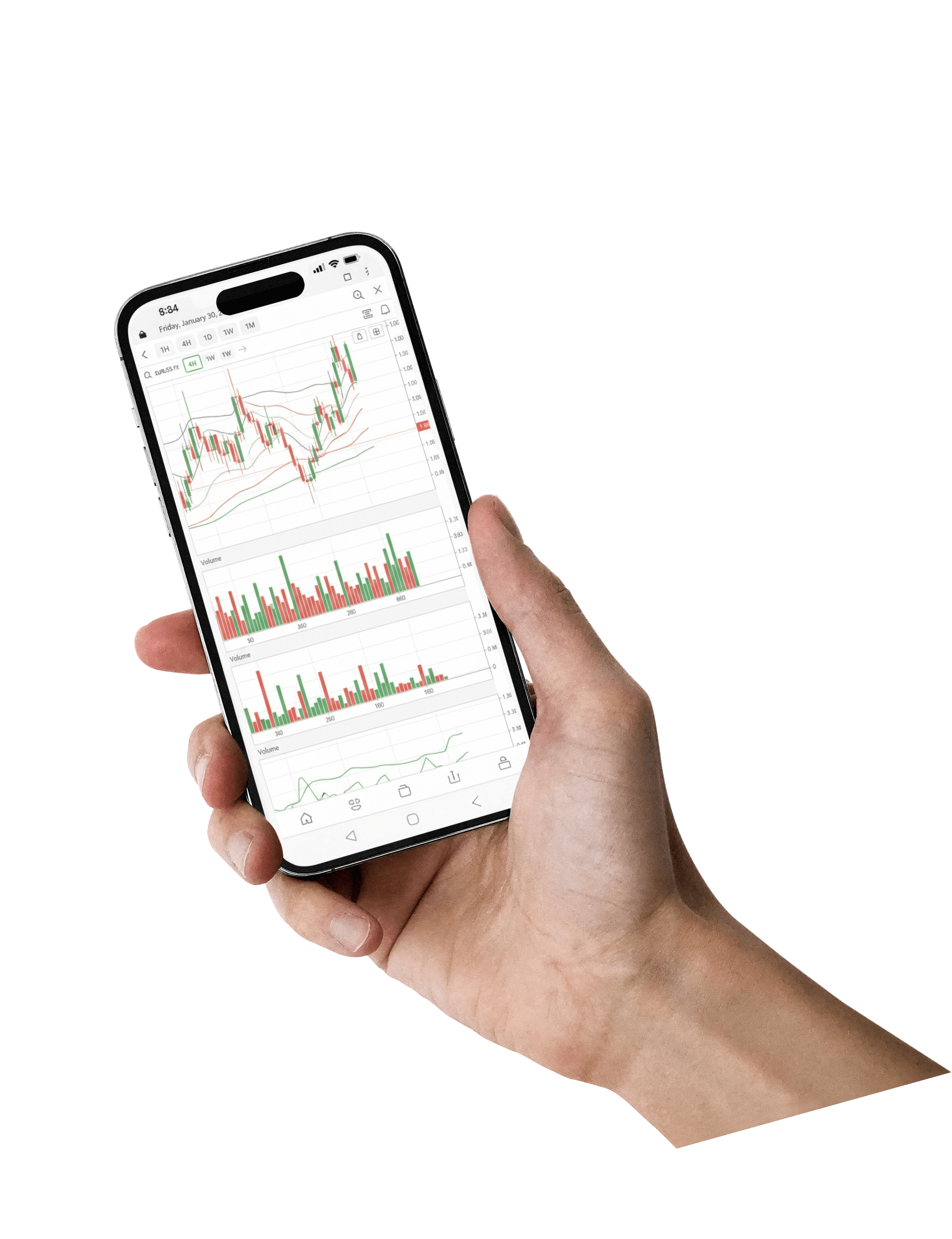
Discover the Time-Tested Reliability of the MT4 Mobile App
Welcome to a user-friendly and reliable mobile trading app, packed with proven features including top-tier trading indicators, standard charts, and analytical tools. This mobile trading app is suitable for traders of all levels and ideal for executing online trading strategies.

Financial Market News
Stay updated with the latest news and events affecting market movements.

All Basic Order Types
On the MT4 app, you can select all basic order types and execution modes.

Order History
Access your trading history for better forecasting and decision-making.
Comprehensive Analysis
The MetaTrader 4 app offers over 40 built-in customizable indicators and an economic calendar, making it a top choice for experienced traders. You can modify nearly every aspect of the charts to your preference and combine indicators in endless combinations.
3 Chart Types
Enhance your trading with line, bar, and candlestick charts.
Built-in Technical Analysis
Analyze markets and plan strategies with and 24 analytical objects.
24 Analytical Objects
Use tools like lines, channels, geometric shapes, and Elliott Waves to determine when to open or close positions.
Why Choose Us
With competitive market conditions, unique features, and cutting-edge security, combined with our commitment to transparency and premium customer service.

Instant Withdrawals
Stay in control of your funds. Simply choose your preferred payment method, initiate a withdrawal request, and enjoy instant automated processing.

Lightning-Fast Execution
Choose the right account to maximize profits and minimize costs.

Negative Balance Protection
We have eliminated overnight interest on most instruments, including major currency pairs, cryptocurrencies, and gold.
Frequently Asked Questions
Based on available information, the MT4 mobile app supports account management and trading operations, but support for deposit and withdrawal functions is not explicitly stated. To confirm whether deposits and withdrawals are possible via the MT4 mobile app, it is recommended to consult detailed official documentation or contact GrandMarkets customer support for the latest information. Suggested steps: - Review official documentation: Visit the GrandMarkets website or help center for detailed information on MT4 mobile app features. - Contact GrandMarkets support: Reach out to GrandMarkets customer support via live chat, email, or phone to inquire about specific deposit and withdrawal processes. - Refer to the user manual: Download and read the MT4 mobile app user manual to understand its full range of supported operations.
1. Built-in Economic Calendar: MT4 provides economic calendar function, which can be used to view upcoming major economic data and technical news. The calendar typically includes expected impact, release times, and actual results. 2. Market Quotes Window: In MT4 and MT5, the 'Market Quotes' window allows you to monitor real-time prices, spreads, and other data for various CFDs, as well as access instant market news or commentary provided by some trading platforms. 3. News Plugins or Add-ons: In some cases, users can install additional plugins or use third-party services to access more detailed technical news content. These plugins may integrate directly into the MT4 or MT5 interface. 4. Trading Communities and Forums: While not built into the software, many traders join online communities or forums to share the latest technical and fundamental analysis reports. 5. Official Notifications and Subscriptions: If GrandMarkets offers a specific notification system or email subscription service, clients can receive updates on technical news through these channels.
How to Subscribe to Trading Signals on MetaTrader 4 App 1. Open the MetaTrader 4 App: Launch your MetaTrader 4 trading platform. 2. Navigate to the 'Signals' Market: From the main interface, click 'Tools' in the menu, select 'Options,' and go to the 'Market' tab. Alternatively, click the 'Market' button in the top menu bar to open the MetaTrader Market page. 3. Search and Browse Trading Signals: In the MetaTrader Market page, use the search function to find Trading Signals or browse the available signals under their respective categories. You can review different signal providers, including their historical performance and number of followers. 4. Select and Subscribe to a Signal: Once you find a signal you're interested in, click on it to view its details page. Read all the information about the signal, including fees and risk warnings. When ready, click the 'Subscribe' button to proceed with the subscription. 5. Set Automated Trading Parameters: After subscribing, configure the automated trading parameters, such as maximum lot size, stop-loss, and take-profit levels. These settings ensure your account executes trades according to your defined rules when signals are triggered. 6. Start Receiving and Following Signals: Once the above steps are complete, you will begin receiving the subscribed trading signals, which will be applied to your trading account automatically or manually. Important Notes: - Fees: Some trading signals may be free, but most premium signals typically require a subscription fee. - Risk Management: Before subscribing, evaluate your risk tolerance and set appropriate trading parameters to protect your account funds. - Regular Monitoring: Even with subscribed signals, periodically review their performance and adjust or cancel the subscription if necessary.
1. Built-in Technical Indicators: The MT4 mobile app provides a robust library of built-in technical indicators. Users can add and configure these indicators directly on charts to support trading decisions. The MT4 app offers comprehensive analytical capabilities, equipped with various technical analysis tools, including but not limited to 30 built-in technical indicators (e.g., Moving Averages, Relative Strength Index (RSI)). 2. Custom and Technical Analysis Tools: Users can customize nearly every aspect of the charts to their preferences and combine indicators in endless combinations for technical analysis. This means that in addition to built-in indicators, users can adjust parameters to customize existing indicators or create personalized technical analysis combinations. 3. Steps to Use: Open the MT4 mobile app and select the market instrument you want to analyze. Tap the 'Insert' button or corresponding icon on the chart interface to browse the list of available technical indicators. Select the desired indicator, set the relevant parameters as prompted, and apply it to the chart for visualization and technical analysis. 4. Notes: While the MT4 mobile app supports a wide range of technical indicators, not all desktop version features are fully available on the mobile version, which may result in some limitations. For more complex or specific technical analysis needs, the desktop version of the application may still be required.